
Estimated reading time: 5 minutes
Adding your business to Google Maps is one of the most powerful steps you can take to enhance your online presence, attract local customers, and build trust with your audience. Whether you’re a brand-new company or a long-standing local favorite, visibility on Google Maps plays a key role in location-based search and consumer trust. In this step-by-step guide, you’ll learn exactly how to add a business to Google Maps and optimize your listing to outrank your competitors in local search.
Need help with this? Our search result suppression service can handle it for you, starting with a free, confidential review and a firm quote before any work begins.
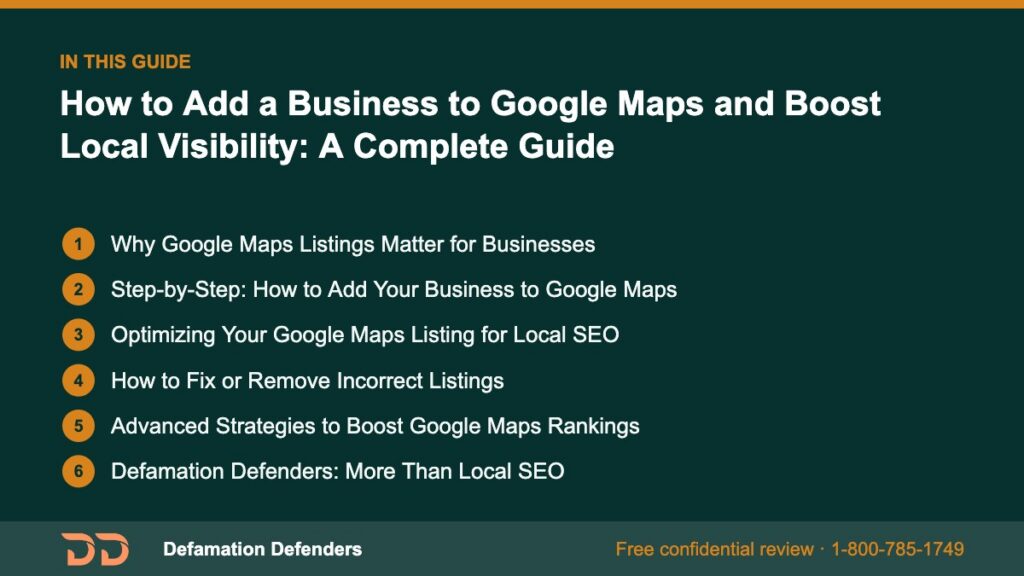
Table Of Content
Why Google Maps Listings Matter for Businesses
Being listed on Google Maps isn’t just about showing up on a map. It’s about dominating local search and earning the trust of potential customers. Google Maps is tightly integrated with Google Search. When someone searches for a type of business near their location, Google often displays a “local pack” — a top-three list of local businesses on the map, accompanied by reviews and photos.
Key Benefits of a Google Maps Business Listing
- Increases foot traffic and calls to your business
- Improves visibility in “near me” search results
- Builds trust with Google Reviews and photos
- Gives you a platform to publish updates and promotions
- Adds credibility and authority to your brand
Want this content gone? Get a free, confidential quote.
Send us the links. Most removals are done in a few days to a few weeks, with a full refund if we can't complete the agreed removal.
Step-by-Step: How to Add Your Business to Google Maps
Step 1: Sign into Google Business Profile
Visit Google Business Profile and sign in using the Google account you want to associate with your business.
Step 2: Add Your Business Name
If your business doesn’t appear in the dropdown, click “Add your business to Google.” Enter your business name exactly as you want it to appear on Google Maps.
Step 3: Choose the Correct Category
Choosing the right business category is crucial. This determines what kind of searches will show your listing. Start typing a keyword that describes your business and choose the most accurate option from the list.
Pro Tip: Don’t try to stuff keywords into your business name. Google’s guidelines prohibit this and may suspend your listing for violations.
Step 4: Add a Physical Address or Service Area
If your business has a storefront, enter your address. If you offer services at customer locations (like plumbers or landscapers), select “I deliver goods and services to my customers” and enter your service area.
Step 5: Enter Contact Details
Include your main phone number and website URL. These must match what’s displayed on your site and any other citations across the web.
Step 6: Verify Your Business
You’ll be prompted to verify ownership. Google may offer one or more of the following methods:
- Postcard by mail (most common)
- Phone call
- Instant verification (if previously verified with Google Search Console)
Once verified, your business will appear on Google Maps within a few days.
Optimizing Your Google Maps Listing for Local SEO
Adding your business is just the beginning. To really benefit, you need to optimize your listing so it ranks high and converts visitors into customers.
Complete Every Section of Your Business Profile
- Add business hours, including holidays
- Upload high-quality photos of your storefront, team, and services
- Write a compelling business description with relevant keywords
- Enable messaging to allow customer contact
Use Consistent NAP (Name, Address, Phone)
NAP consistency across the web (including your website, directories, and social profiles) is a major ranking factor in local SEO. Defamation Defenders helps clients audit and clean up inconsistent listings that may hurt their online presence.
Encourage and Respond to Reviews
Customer reviews boost credibility and directly impact your ranking. Politely ask satisfied customers to leave a Google review. Make sure to reply to every review — even negative ones — to show engagement and professionalism.
“Local businesses that actively manage their online presence are twice as likely to be considered reputable by consumers.” — Google
Add Posts, Offers, and Events
You can publish content directly to your business listing. Use this feature to:
- Promote limited-time discounts
- Announce new products or services
- Share blog content from your website
Embed Your Google Map on Your Website
Embedding your Google Maps listing on your contact page or homepage improves trust and supports SEO.
<iframe src="https://www.google.com/maps/embed?..." width="600" height="450" style="border:0;" allowfullscreen="" loading="lazy"></iframe>How to Fix or Remove Incorrect Listings
Sometimes old addresses, fake listings, or duplicates show up on Google Maps. Here’s how to address them:
Reporting a Duplicate or Incorrect Listing
- Open Google Maps
- Search the business name
- Click “Suggest an edit”
- Choose “Remove this place” or update incorrect info
Claiming a Business Someone Else Verified
If someone else has claimed your business, Google allows you to request access through the verification process.
If you suspect malicious listings or content, contact Defamation Defenders for advanced removal services and support.

Advanced Strategies to Boost Google Maps Rankings
Once you’ve claimed and optimized your business listing, go further with these expert strategies.
1. Build Local Citations
Submit your business to trusted local directories and data aggregators such as:
- Yelp
- Better Business Bureau
- Foursquare
- [Local Chamber of Commerce]
2. Create Geo-Tagged Content
Use tools like GeoImgr to tag your business photos with location metadata before uploading them to your listing. Google recognizes this as a local signal.
3. Use Local Schema Markup
Add structured data to your site’s code to help search engines better understand your business. Here’s a basic example:
{
  "@context": "https://schema.org",
  "@type": "LocalBusiness",
  "name": "Your Business Name",
  "address": {
    "@type": "PostalAddress",
    "streetAddress": "123 Main St",
    "addressLocality": "Your City",
    "addressRegion": "Your State",
    "postalCode": "12345"
  },
  "url": "https://yourwebsite.com",
  "telephone": "+11234567890"
}
4. Create City-Specific Landing Pages
For service businesses covering multiple cities, create optimized pages for each location. Link them from your Google Maps listing to improve regional reach.
5. Monitor with Insights and Analytics
Use Google Business Profile Insights and Google Analytics to track views, search queries, and user actions. Adjust your strategy based on what works.
Defamation Defenders: More Than Local SEO
While adding your business to Google Maps is a powerful step, it’s just one piece of your online presence. At Defamation Defenders, we help clients go beyond Maps listings:
- Suppress negative search results
- Remove false or outdated content
- Protect private information from public databases
- Audit and repair local citations
Our online reputation management services give you control over how your business is perceived across the web.
Ready to take control of your online presence? Contact Defamation Defenders today to speak with a reputation advisor.
FAQ: Google Maps for Business
Once you’ve verified your business, it typically appears within 3–5 days. If it doesn’t, review your information for errors or contact Google Support.
No. Service-based businesses can list a service area instead of a physical address.
Yes. You can manage multiple locations from a single Google Business Profile account.
Flag the review as inappropriate and report it to Google. For serious cases, consult Defamation Defenders to explore review removal and legal solutions.
Optimize your profile completely, gather more reviews, keep NAP consistent, publish content regularly, and build strong local links.
Want this content gone? Get a free, confidential quote.
Send us the links. We'll reply with a firm quote and timeline. Most removals are done in a few days to a few weeks, with a full refund if we can't complete the agreed removal.
Pay-after-removal options · 4,000+ clients served · 4.9/5 on Google
Prefer to talk? Call 1-800-785-1749
